
SSO ID Login Rajasthan — Official Portal Sign-In Steps & Fixes
To access government schemes, recruitment portals, and citizen certificates, sign in directly on the official Rajasthan Single Sign-On portal at sso.rajasthan.gov.in. Always ensure the browser URL ends in rajasthan.gov.in before typing your credentials.
https://sso.rajasthan.gov.in/signin
Understanding the Rajasthan Single Sign-On (RajSSO) Architecture
The Rajasthan Single Sign-On (RajSSO) portal, engineered and maintained by the Department of Information Technology & Communication (DoIT&C), functions as the digital identity backbone for over 80 million residents across Rajasthan. Before the deployment of RajSSO, citizens were required to remember distinct account credentials for municipal taxes, state examinations, scholarship distributions, and healthcare enrollments. RajSSO unifies these disparate databases into a hardened, centralized authentication framework.
Under the hood, the RajSSO infrastructure leverages federated identity protocols with secure session tokens, role-based access control (RBAC), and direct database synchronization with the State Resident Data Hub (SRDH) and Jan Aadhaar authority. When you sign in, the authentication server evaluates your identity tier and presents tailored application dashboards corresponding to your verified citizenship, business ownership, or civil service designation.
RajSSO User Profiles and Access Permissions
| User Category | Primary Identifier | Key Enabled Services | Security Requirements |
|---|---|---|---|
| Citizen (नागरिक) | Jan Aadhaar ID / Google ID | e-Mitra, RPSC/RSSB Recruitment, Scholarships, Chiranjeevi/Ayushman Health, Caste & Domicile Certificates | Mobile OTP linked to Jan Aadhaar / UIDAI Aadhaar biometric validation |
| Government Employee (कर्मचारी) | SIPF Employee ID (RJXX...) | RajKaj e-Office, PayManager salary slips, IFMS budget allocation, APAR annual performance appraisals | Govt official mobile authentication, IP restricted access for financial disbursements |
| Udhyog / Business (उद्योग) | BRN (16 digits) / Udyog Aadhaar | Single Window Clearance System, Factory inspection compliance, Trade licensing, State e-Tendering | Authorized signatory KYC verification, Corporate PAN linkage |
Step-by-Step Login Instructions
Follow these authenticated steps to sign into the official Rajasthan Single Sign-On dashboard without credential lockouts.
Prerequisites Checklist Before You Start
- A registered Rajasthan SSO ID (Digital Identity username)
- Your secret account password (case-sensitive)
- Access to the registered mobile number (for 2FA/OTP if enabled)
- An updated web browser (Google Chrome, Mozilla Firefox, or Microsoft Edge recommended)
Navigate to the Official Sign-In Endpoint
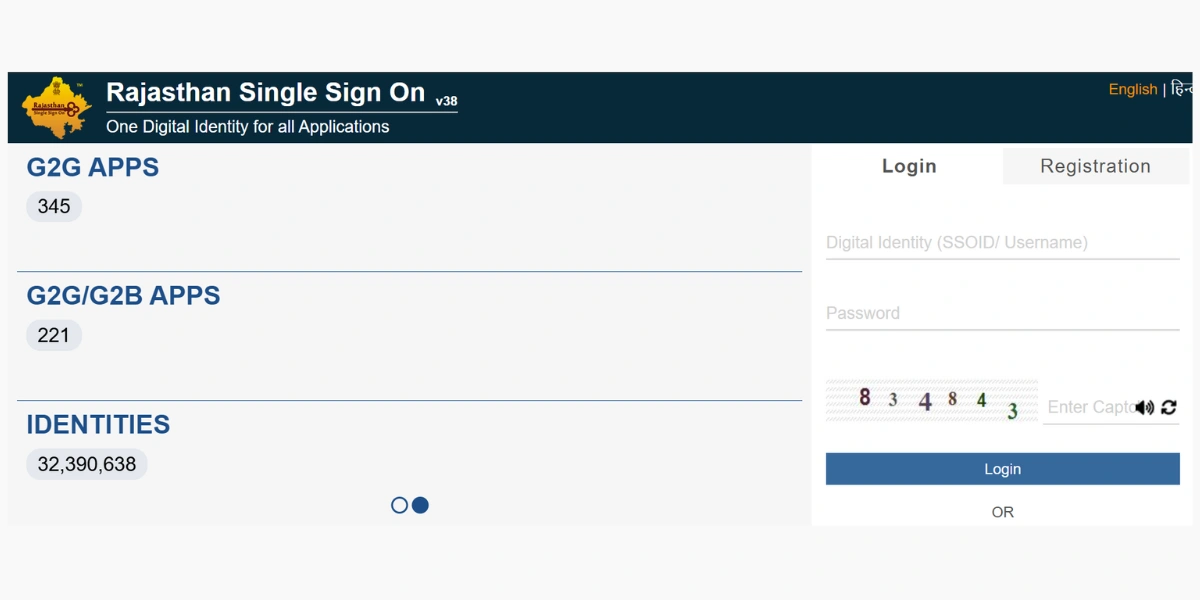
Open your desktop or smartphone web browser and visit the verified government endpoint: https://sso.rajasthan.gov.in/signin. Inspect the browser address bar to confirm the secure HTTPS padlock and that the domain ends strictly in .rajasthan.gov.in.
Enter Your Digital Identity (SSOID)
Type your registered username into the 'Digital Identity (SSOID / Username)' input field. SSOIDs are not case-sensitive, but make sure not to paste leading or trailing whitespace characters.
Enter Your Account Password
Carefully enter your password into the 'Password' field. Passwords are case-sensitive. Verify that your keyboard's Caps Lock is switched off and your input language is set to English.
Solve the 6-Digit Numeric Captcha Code
Inspect the 6-digit numeric security captcha rendered inside the box on the right side. Enter the exact numbers in the 'Enter Captcha' box. If the numbers appear distorted or faint, click the circular reload arrow icon to generate a fresh code.
Submit Credentials & Authenticate OTP (If Prompted)
Click the green 'Login' button. If your profile has two-factor authentication enabled or if you are logging in from an unfamiliar IP subnet, enter the 6-digit OTP received on your Jan Aadhaar-linked mobile phone.
Access Your Integrated Application Dashboard
Upon verification, the portal loads your personalized RajSSO workspace. Use the quick-filter search bar to launch key state services including e-Mitra, Jan Aadhaar, RPSC Recruitment Portal, and Scholarship modules.
Ready to complete this step?
Proceed to the official state portal to enter your data safely.
Understanding the Credential Input Form Elements
Ensure every field on the sign-in modal is completed accurately to prevent automated IP throttling or account locks.
Navigating Your Post-Login Workspace: G2C and G2G Portals
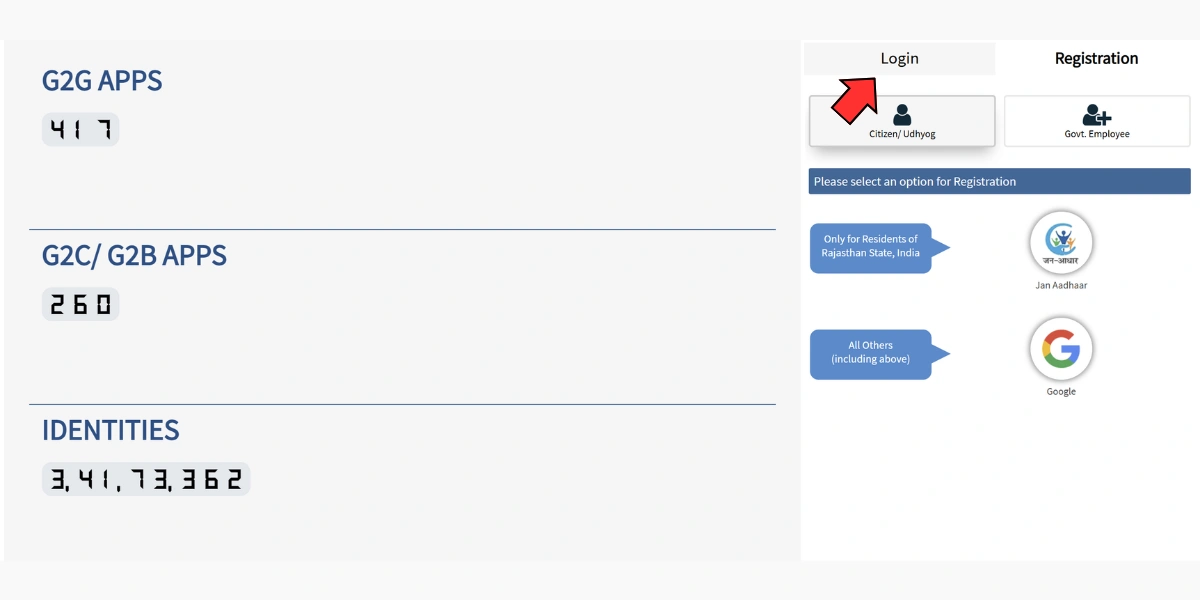
Once your authentication credentials pass validation, the state portal redirects you to your unified RajSSO home dashboard. For first-time visitors, the grid of dozens of colorful application icons can appear overwhelming. The portal organizes tools into two core classifications:
G2C (Government to Citizen) Applications
These services are accessible by all registered citizens and job seekers. Primary tiles include:
- Recruitment Portal (RPSC & RSSB): Execute One-Time Registration (OTR), submit examination forms, download admit cards, and review answer keys.
- Jan Aadhaar Authority: Access digital family cards, download e-cards, and inspect direct benefit transfers (DBT).
- e-Mitra Citizen Services: Apply for Bonafide, Caste, Income, and EWS certificates or pay electricity and water bills.
- Scholarship (SJE): Track Post-Matric and CM higher education financial assistance grants.
G2G (Government to Government) Applications
Reserved exclusively for authenticated state government officers and civil servants. Key modules include:
- RajKaj (Electronic Office): Paperless file drafting, digital e-signatures, file dispatching, and leave tracking.
- PayManager & PRI PayManager: Monthly salary preparation, DA increment calculations, and tax declarations.
- SIPF Portal: State Insurance, General Provident Fund (GPF) withdrawals, and loan ledgers.
- IFMS (Integrated Financial Management): Departmental budgetary allocations and treasury sanction approvals.
Efficiency Tip: If an application tile does not appear in your primary view, click the "Clear Preference" or "Active Apps" toggle on the top toolbar. You can also type the first few letters of the service into the quick-search filter bar to launch it instantly without scrolling.
Multi-Factor Authentication (2FA) & Jan Aadhaar OTP Layer
To combat automated credential stuffing and phishing attacks against government accounts, the Department of Information Technology & Communication (DoIT&C) implements an intelligent risk-based Multi-Factor Authentication (2FA) layer across the RajSSO platform. While basic sign-ins from trusted home networks may only request username and password, the authentication gateway automatically triggers an SMS One-Time Password (OTP) challenge under specific security conditions:
Unrecognized Location or Device
Logging in from a new smartphone browser, an out-of-state IP address, or a public cyber cafe initiates an automated OTP dispatch to the citizen's registered Jan Aadhaar phone number.
Profile & Bank Modifications
Updating your primary bank account number for scholarship refunds or altering your registered Aadhaar identity requires mandatory biometric or OTP confirmation.
Govt Employee Workspaces
State employees logging into financial disbursal modules (IFMS, PayManager treasury systems) are subjected to mandatory two-tier cryptographic OTP authorization.
What to Do if the 2FA Verification SMS is Delayed
The RajSSO OTP gateway delivers messages through the National Informatics Centre (NIC) SMS bridge. During heavy traffic periods (such as the final day of competitive exam submissions), SMS delivery may experience brief routing queues. Wait 60 seconds for the countdown timer to expire before clicking "Resend OTP". Avoid rapidly clicking the resend trigger, as this invalidates earlier codes in transit and generates token mismatch errors.
Handling Idle Timeouts & Multi-Tab Session Conflicts
Every active login to RajSSO is governed by a server-side session watchdog designed to protect citizen data if a workstation is abandoned. Understanding how session tokens operate is vital for candidates filling out complex multi-page recruitment forms or e-Mitra certificate requests:
The 15-Minute Strict Inactivity Watchdog
The portal automatically terminates any active session after 15 consecutive minutes of user inactivity (no mouse movements, clicks, or keystrokes registered by the browser DOM). If you leave an exam application open while searching for scanned certificates, your session will expire silently. When you finally click "Submit", the portal redirects to the login screen and all unsaved form entries are lost. Always click "Save as Draft" after completing each section.
Multi-Tab Session Collisions and Cross-Contamination
Never open RajSSO simultaneously in two different tabs of the same web browser to fill forms for different family members. Because browsers store session cookies globally across tabs for a domain, opening a second account in Tab B instantly overwrites the active session token in Tab A. Submitting Tab A afterward will inadvertently submit data under Tab B's identity, resulting in severe registration corruption.
How to Safely Handle Multiple Simultaneous Applications
If you need to process submissions for two different individuals simultaneously (e.g., helping a sibling while managing your own profile), open one session in your primary browser window and the second session inside an entirely separate browser (e.g., Chrome alongside Mozilla Firefox or Microsoft Edge) or within a dedicated Private/Incognito profile window.
In-Depth Troubleshooting for SSO Login Failures
Step-by-step diagnostic solutions for password mismatches, server timeouts, and browser session expiry.
Invalid Digital Identity (SSOID) or Password
Verify if Caps Lock is enabled. Passwords are strictly case-sensitive. If forgotten, do not attempt more than 3 consecutive incorrect passwords to prevent a temporary lock. Use the 'Forgot Password' recovery link immediately.
Session Expired / Session Timed Out Immediately
This occurs when your browser cache holds stale session tokens or when third-party cookies are blocked. Clear your browser cache and cookies for rajasthan.gov.in, or open an Incognito/Private browsing window.
Captcha Code Does Not Match Error
The security captcha refreshes every 2 minutes. If you spend too long typing your password, the captcha expires in the backend. Always click the circular refresh arrow to generate a fresh 6-digit captcha before clicking Submit.
White Screen or Portal Loading Error (Server 500 / 504)
During peak exam application dates (RPSC/RSSB), government servers experience heavy traffic. Wait 15–30 minutes, or access the portal during non-peak hours (early morning before 8 AM or late evening after 10 PM).
OTP Not Received on Registered Mobile Number
Check whether your mobile carrier has active incoming SMS service and that Do Not Disturb (DND) is not blocking service route SMS. If your number changed, update it via Jan Aadhaar at an e-Mitra kiosk.
Account Temporarily Locked (Exceeded Maximum Attempts)
After 5 failed login attempts, the system imposes an automated 30-minute security lockout. Wait 30 minutes without attempting to log in, then use 'Forgot Password' to reset your credentials.
Cyber Cafe & Shared Computer Security Guidelines
Millions of applicants across Rajasthan log in to RajSSO from public kiosks, university libraries, or commercial cyber cafes to complete exam forms or print admit cards. Shared workstations represent the single highest vector for credential theft and unauthorized profile tampering. Adhere strictly to these five operational security mandates whenever accessing your account outside personal devices:
1. Always Operate in Private Browsing / Incognito Mode
Press Ctrl + Shift + N (Chrome/Edge) or Ctrl + Shift + P (Firefox) to spawn a clean session window. Incognito mode ensures session cookies, autofill records, and cached credentials are automatically purged the moment you close the window.
2. Never Accept "Save Password" or "Remember Credentials" Prompts
Public web browsers frequently display popups asking to save login credentials for subsequent visits. Always click "Never" or "Don't Save". If you accidentally save your password, anyone sitting at that terminal next can open RajSSO and manipulate your application data.
3. Execute the Explicit Two-Step Logout Procedure
Closing the browser window does not necessarily invalidate server-side session cookies. Always click your profile avatar at the top right of the dashboard and select "Logout". Wait until the screen reloads back to the official login gateway before walking away from the computer.
4. Scrub Downloaded PDF Documents and Clear Temporary Storage
When you print an RPSC admit card, exam receipt, or Jan Aadhaar certificate, the PDF is permanently stored in the public workstation's "Downloads" folder. Open the file explorer, locate the downloaded files containing your personal Aadhaar, family details, and roll numbers, and permanently delete them (Shift + Delete).
5. Beware of Keylogger Software and Fake Hardware Plugs
Visually inspect the back of the computer tower to ensure no unauthorized USB hardware dongles are connected between the keyboard cable and the port. If you suspect any anomalies, change your SSO password immediately from your personal smartphone using mobile data.
Government Contact Directory
Toll-free across Rajasthan (Free call)
Alt: 0141-2925554
Dial 181 for service complaints
SSO Login Questions & Answers
Verified answers to common queries regarding login credentials, mobile access, session errors, and security.